Web dashboard
The dashboard runs locally and is laid out like a console: a status bar on top, the sections in the rail on the left and an event log at the end of every page. Colour only ever means health (red, amber, green); everything else stays black and white. It opens dark unless your system is set to light, Theme switches, and the fonts ship with AutoDiag, so it looks the same offline. It also works on a phone-sized screen.
Status bar and event log
- Status bar: domain ID, RMW, distro, node and topic counts, and the problems and warnings found so far. The counts add up the host checks and the graph; click one to open where they were found. The dot next to the name turns red as soon as anything is broken.
- Event log: the last section of every page, so it never covers anything: each check you run (overview, graph, topic inspection) with its time, level, topic and rule, newest first. Show all lists more than the latest 10, and clicking an entry opens that topic in the inspector. While the log is off screen, a one-line bar at the bottom shows the latest entry; click it to jump down.
Overview
The landing page answers "is this machine set up correctly?":
- Status banner: a configuration problem, or "no confirmed problems, data flow not yet verified".
- Key facts: host, ROS distro, domain ID, effective RMW (detected with
ros2 doctor), discovery range, node and topic counts, and whether AutoDiag runs inside a container. - Findings: sorted by severity, each with evidence, the next step and links to official documentation where one applies.
- What has been verified?: which checks passed and which are still not tested or not verified.
Topics
- Discover topics lists everything visible in the ROS graph, with a filter.
- Click a topic to see every publisher and subscriber with reliability, durability and history. Incompatible pairs appear as findings.
- Read one sample waits up to 3–15 s for a real message, using Auto, Best effort or Reliable. Tick
Repeat every 3 s to watch a topic. The sample is AutoDiag’s own
ros2 topic echo, not a subscriber you selected on the topic. A received message proves delivery to that probe; a timeout tells you where to look next.
Graph
Check connections draws every publisher → subscriber connection on the visible topics and checks each one with the same QoS and type rules as the topic inspector:
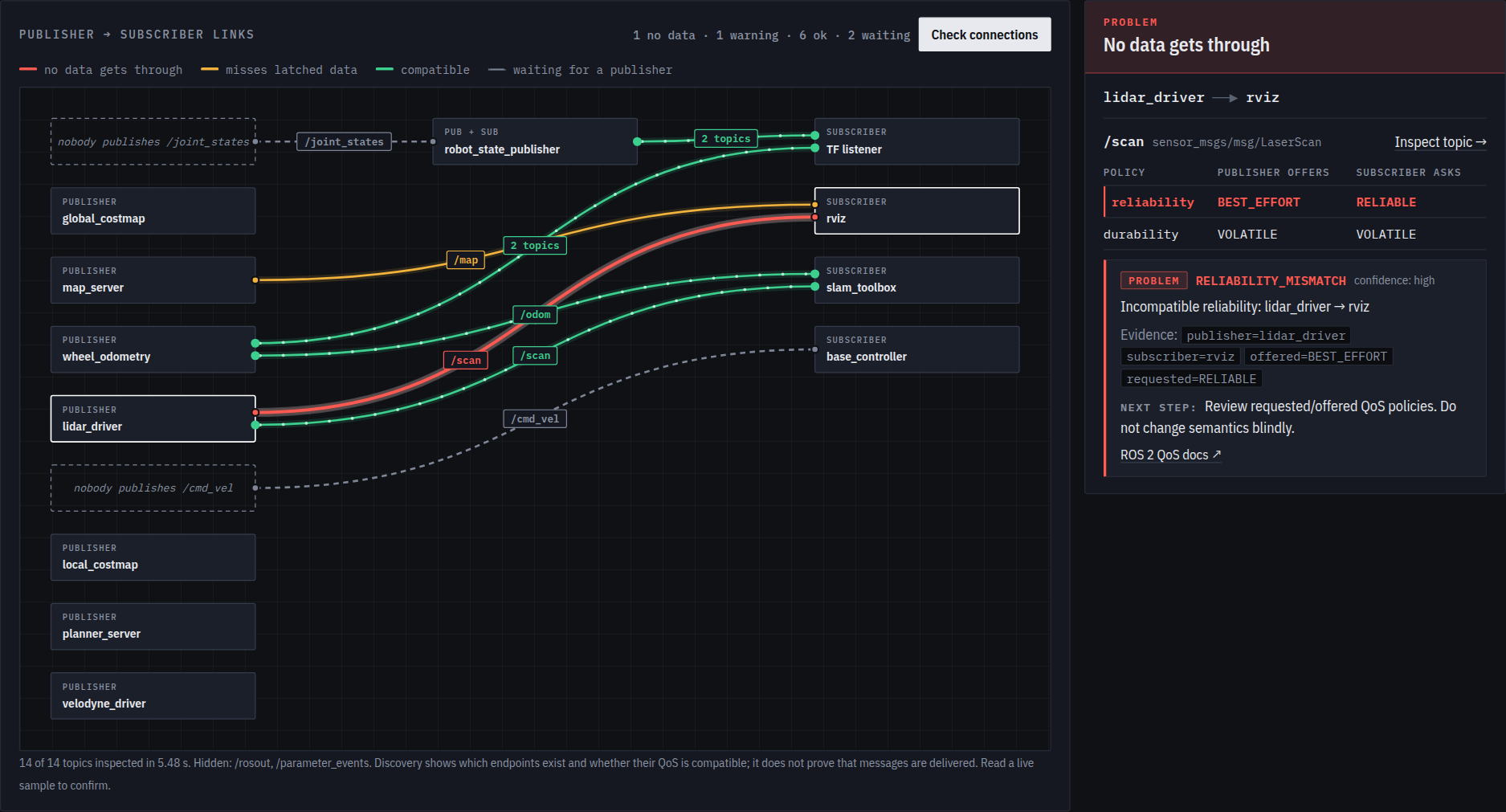
- Red, with a break mark: a problem; no data gets through (e.g. best-effort publisher, reliable subscriber).
- Amber: a warning, e.g. a Volatile subscriber that misses latched (Transient Local) data such as a map.
- Green, with moving dots: compatible QoS and types. The dots stand still if your system asks for reduced motion.
- Dashed: a subscriber is waiting, but nobody publishes the topic (from this machine's point of view).
Every link has its own port on each node, so you can follow it from end to end. The worst link opens straight away
in the inspector on the right: its state, the offered and requested QoS side by side with the policy at fault
marked, the finding, the fix and a link to the topic inspector. Click any other link to switch. Discovery runs once
for the whole graph (about 3 s); /rosout and /parameter_events are hidden, optional companion topics such as
/map_updates are never reported as waiting, nodes started with ros2 topic pub/echo are shown as such, and tf2's
internal listener nodes appear as TF listener. A problem is reported once per connection, even if a node (like RViz)
holds several endpoints on the same topic. Like the topic inspector, the graph shows which endpoints exist and whether
they are compatible, not that messages are delivered.
Hosts
This host is always the AutoDiag process whose dashboard you have open (dds-autodiag serve). A peer is a
snapshot you load or another serve you connect to (a collector). The same binary; the UI you opened is this host.
Compare this machine with another PC, robot or container: load a snapshot file, paste JSON, or connect to a live,
token-protected collector (http://<ip>:<port> plus that process’s AUTODIAG_AGENT_TOKEN). A side-by-side table
highlights domain, RMW, distro and discovery differences.
The Local Docker environments table runs docker on this process. It lists container name, network, IP and
published or AUTODIAG_PORT, and a Connect URL when AutoDiag is listening. It cannot list your laptop (that is not a
container). Inside a container without the Docker CLI you will see “Docker CLI not installed”; scan containers from
the host dashboard, or type the other collector URL by hand. See
Compare hosts & containers.
Transport
The page names this host vs the loaded peer (hostname, domain, RMW, discovery, container). The dropdown is the
transport you expect (auto, intra-process, DDS shared memory, UDP or TCP), not the one DDS selected. Run checks
to get findings for that pair. Switching the peer under Hosts clears a previous Run checks table so two peers cannot
appear on the same page.
For shared memory, AutoDiag also inspects /dev/shm, free space and the IPC namespace on this host. Green
prerequisites do not mean SHM is in use between the two sides.
Not verified
Configuration checks can't tell which transport DDS actually selected at runtime. AutoDiag says so explicitly instead of guessing. A received sample proves delivery to the probe, not which transport carried it.
Assistant
Ask in plain language. AutoDiag combines your current findings with the most relevant curated documentation and,
if you choose, a streamed AI explanation. If your question names a live topic ("why does my map stay empty" →
/map), its live endpoints and QoS findings are included too, and the answer says which topic it used. Follow-up
questions keep the conversation. After the model finishes, every dds-autodiag … command in the answer is parsed
against the real CLI; invented options (for example --transport rmw) are flagged and must not be run. Trust the
findings first. See
AI providers and RAG & AI pipeline.
Tools
- Tool check: smoke-tests this AutoDiag install with fake snapshots. Detected means the rule engine works, not that those systems can communicate.
- Live rule check: runs every published rule on this host and the peer loaded under Hosts, plus QoS/type rules on this host’s live graph. Each rule is fault (present), pass (not present), or skipped (needs a peer or a live graph).
- Live pair check: pick a topic visible on this host, then one live publisher and one live subscriber, and run the
QoS/type rules on that pair. Read one sample is AutoDiag’s own
ros2 topic echo, not the subscriber you picked; a received message does not prove that subscriber is receiving. - Endpoint QoS checker (experimental): describe a publisher/subscriber pair by hand (e.g. from a design doc) and check it, using the native C++ core when built, else the Python rules. Both report the same rule codes.
Settings
Version, enabled features, and AI providers: link or remove API keys, pick models from live lists, test a provider, and choose the default.
Status bar actions
| Button | What it does |
|---|---|
| Theme (half-filled circle) | Switches dark/light |
| Export | Downloads this machine's snapshot, redacted by default |
| Report | Markdown report of the current comparison, ready for a ticket |
| Check again | Re-collects everything |
The previous interface is still available at /legacy (experimental, may be removed before 1.0), and the
interactive API reference at /api/docs.