RViz2 panel
The AutoDiag panel brings diagnostics and AI into RViz2, right next to the displays you're debugging.
Install
cd ros2
source /opt/ros/jazzy/setup.bash
colcon build --packages-select rviz_autodiag_panel
source install/setup.bash
rviz2
In RViz: Panels → Add New Panel → rviz_autodiag_panel → AutoDiag.
One command: server + RViz
source .venv/bin/activate           # dds-autodiag must be on PATH
ros2 launch rviz_autodiag_panel autodiag.launch.py
This starts the AutoDiag server and RViz with the panel already added and connected. Closing RViz stops the server again.
| Argument | Default | Purpose |
|---|---|---|
port |
8080 |
Server port; the panel connects to it automatically |
start_server |
true |
Set false if a server is already running (e.g. the systemd service) |
server_cmd |
dds-autodiag |
Executable name or absolute path |
rviz_config |
the package's rviz/autodiag.rviz |
Use your own config; add the AutoDiag panel to it once and save (see Saved settings about port) |
The panel needs the AutoDiag server
The panel is a client of the server: diagnostics, documentation search and AI providers (including API keys)
all stay there. Start it first with dds-autodiag serve (or use the launch file above). The browser dashboard
doesn't need to be open.
Connecting
The top row holds the server URL (default http://127.0.0.1:8080, or AUTODIAG_SERVER_URL if set; a URL saved in
the .rviz file overrides both), Connect, and Dashboard, which opens the current view in the web dashboard (Health → Overview, Topic →
Topics, Graph → Graph, AI assistant → Assistant). If the server isn't up yet,
the panel keeps trying for about 30 seconds. If the server requires a token, enter it in the token field or start
RViz with AUTODIAG_UI_TOKEN set.
The five tabs
The overall status and every finding for this machine, sorted by severity. Hover a finding to see its next step. Tick every 30 s for automatic refresh.
Pick a topic and press Inspect to see publishers, subscribers and QoS, with incompatibilities marked. Topics used by your RViz displays are listed first, and ⚠ marks a display that currently reports a problem. That's usually the one to inspect.
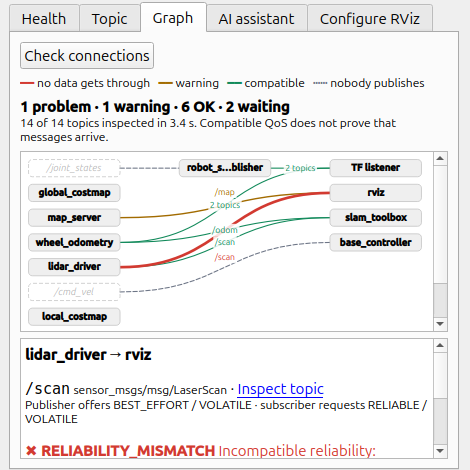
Every publisher → subscriber connection on the visible topics, checked with the same QoS and type rules: red means no data gets through, orange a warning (for example a Volatile display on a latched map), green compatible, and a dashed line a subscriber that nobody publishes to. The check runs the first time you open the tab (a few seconds; Check connections repeats it), opens the worst connection right away and scales to the width of the dock. Click a line for its finding, next step and documentation; Inspect topic jumps to the Topic tab.
Ask about your system in plain language. The answer streams in, cites official documentation as clickable links, and includes the selected topic's live endpoints and QoS as context when Include the topic is ticked. Follow-up questions keep the conversation; New conversation starts fresh.
Describe the view you want, and the AI plans display changes that AutoDiag validates before you apply them. This one gets its own guide: Configure RViz with AI.
Making the panel bigger
RViz panels are dock widgets:
- Double-click the panel's title bar to float it as a separate, resizable window, for example full height on a second monitor. Double-click again to dock it.
- Or drag the divider between the panel column and the 3D view.
- File → Save Config remembers the layout.
Saved settings
The server URL, provider, model, selected topic, Include the topic and every 30 s are stored in your .rviz
file. The access token is deliberately not saved, because .rviz files are often shared.
A saved server URL overrides AUTODIAG_SERVER_URL, so once you've saved your own config, the launch file's port:=
no longer reaches the panel; change the URL in the panel (and save again) instead.